From an empty shop to a licensed plugin, one screen at a time. Every picture on this page comes from a real run of these steps on a fresh WordPress shop. The shop in the pictures is “Acme Audio”, selling a made-up plugin called “AX1 Compressor”.
You do not need web or server experience. If you can install a WordPress plugin and build a JUCE project, you can do this. In part 2 you copy a few commands into Terminal, and each one is shown in full. If you use an AI coding assistant, give it this page and the README files in your download. If you get stuck, write to support@seatlocklicense.com. We help until it works.
What you need
- A WordPress shop with WooCommerce. It needs hosting with https. Most hosting plans install WordPress in one click, and WooCommerce is a free plugin.
- A Mac with Xcode and CMake. Xcode is free from the App Store. CMake is free from cmake.org.
- JUCE 8 or 9. You also need a JUCE licence that lets you sell closed-source products.
- Your Seatlock download. Unzip it. The folder holds the shop plugin, the SDK, seatlock-tool and the example plugin.
Part 1: your shop
1. Upload the plugin
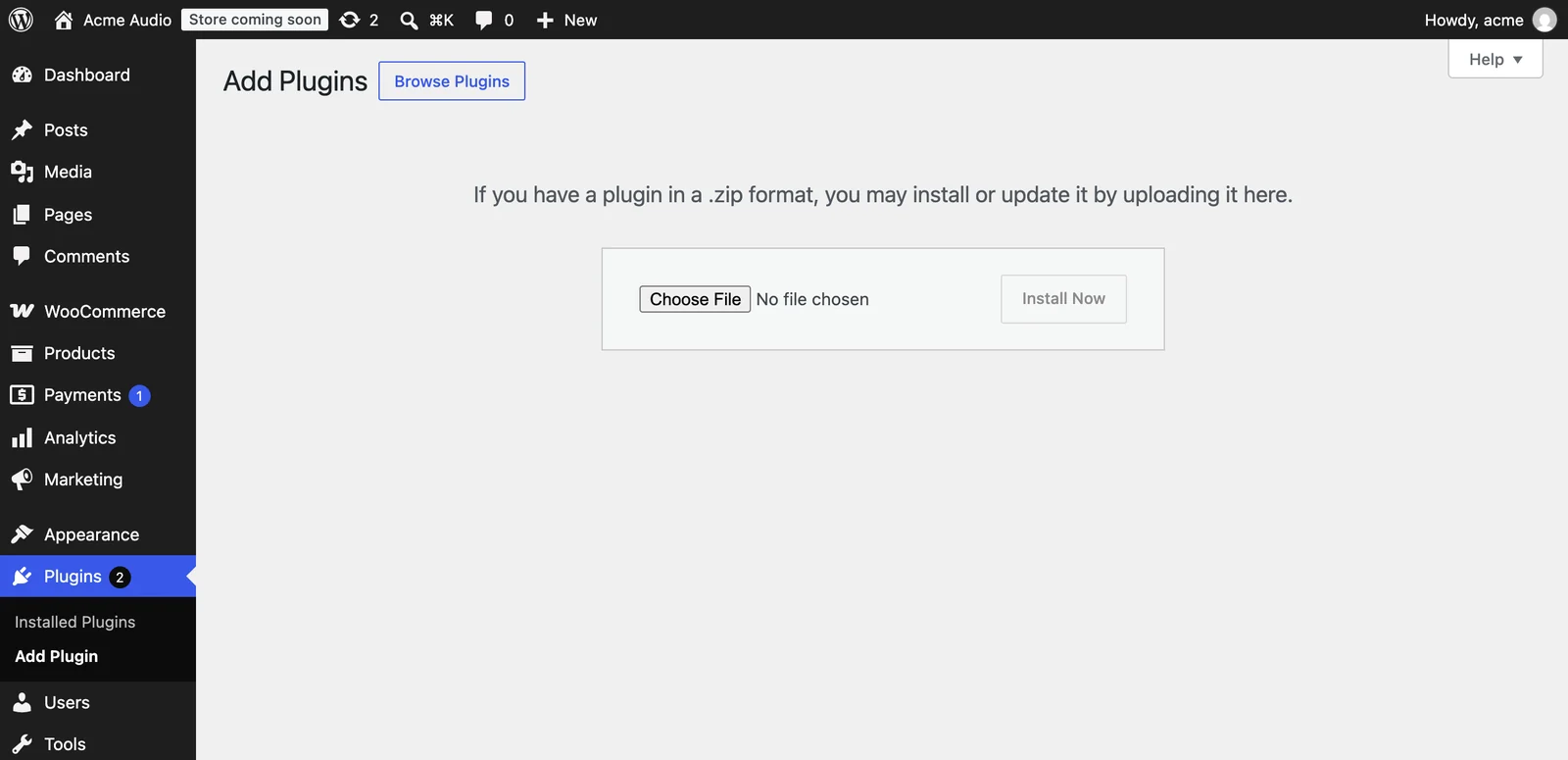
In WordPress, open Plugins → Add Plugin → Upload Plugin. Choose seatlock-license-server-1.0.0.zip from your download, click Install Now, then Activate.
2. Read the Health panel
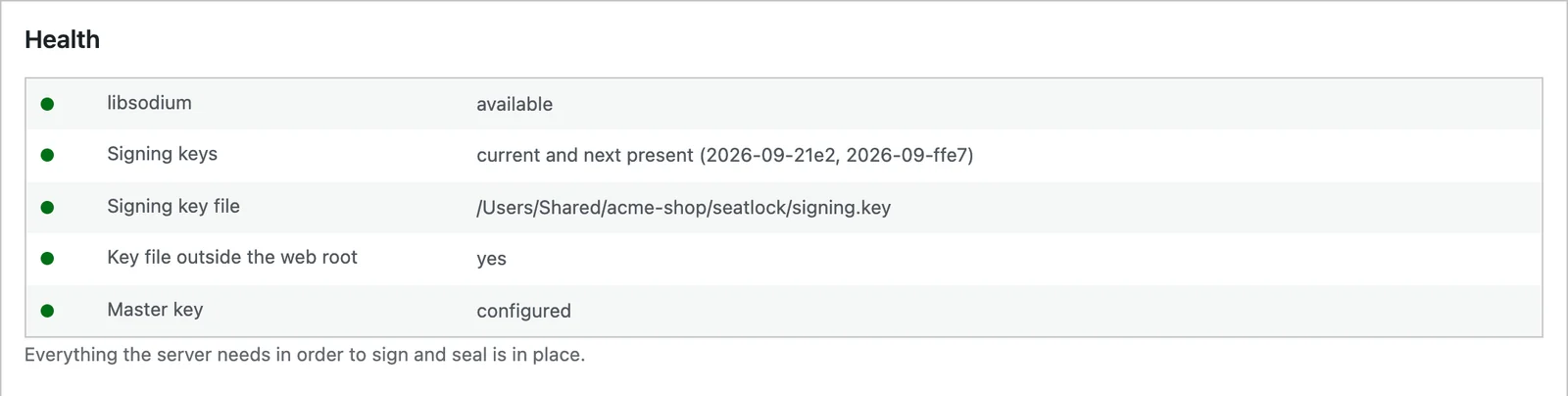
Open Seatlock in the left-hand menu. The Health panel lists what is still missing. Red rows are normal on a new shop, and the right-hand column says what to do.
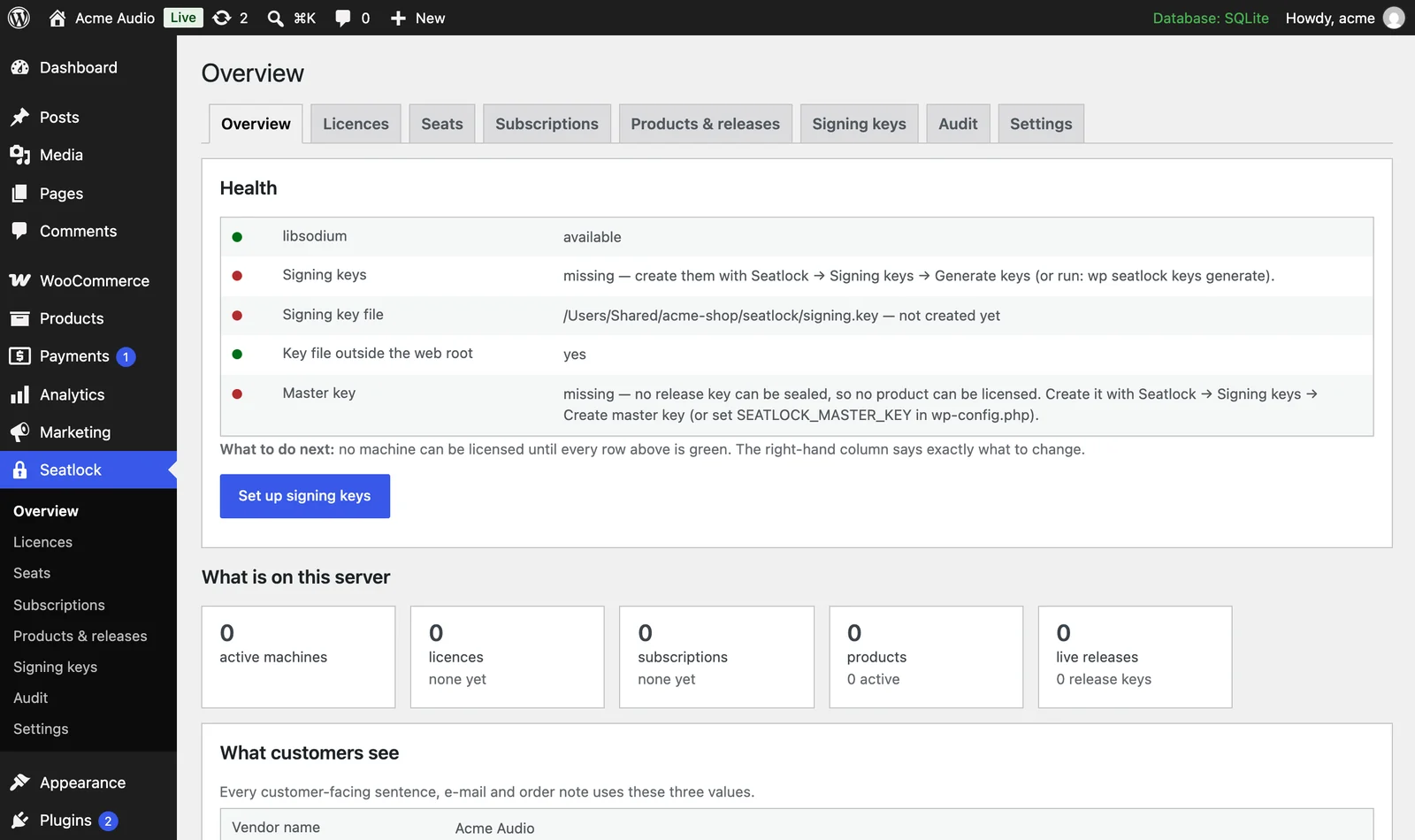
Check the row Key file outside the web root. On most hosting it is green, as here. If it is red, your host needs one line in wp-config.php. Write to us and we tell you the exact line for your host.
3. Create your keys
Open Seatlock → Signing keys. Click Generate keys. Then click Create master key on the same screen.
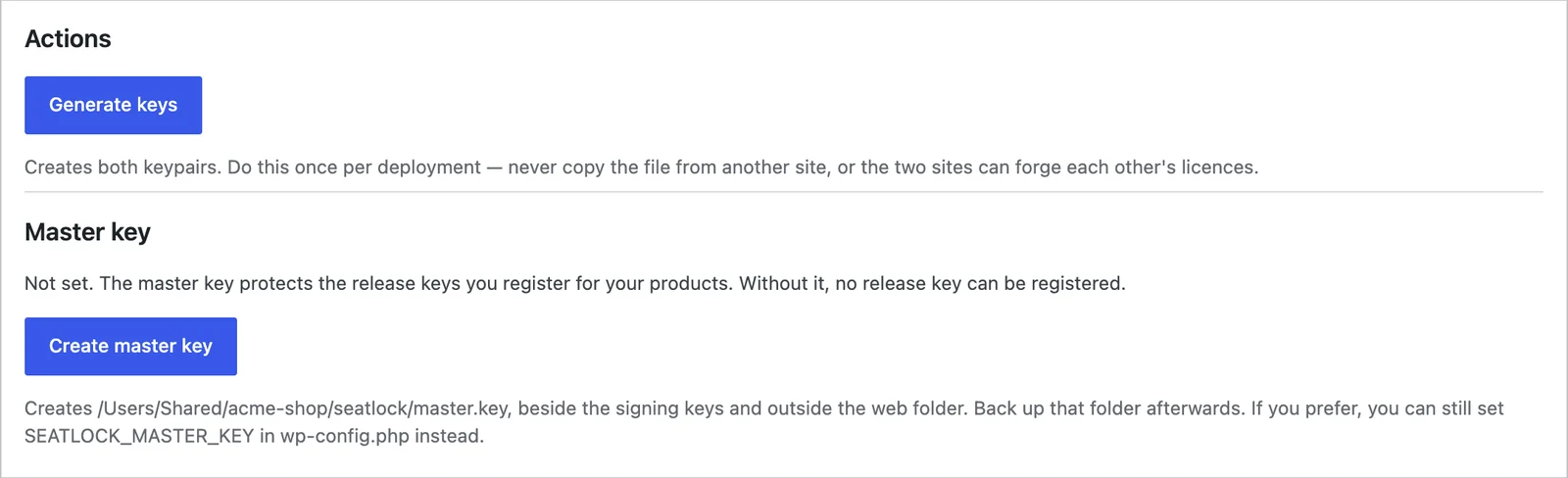
The signing keys sign every licence your shop issues. The master key locks the release keys you add in step 6. Both are written to a folder outside your website, which a browser cannot reach.
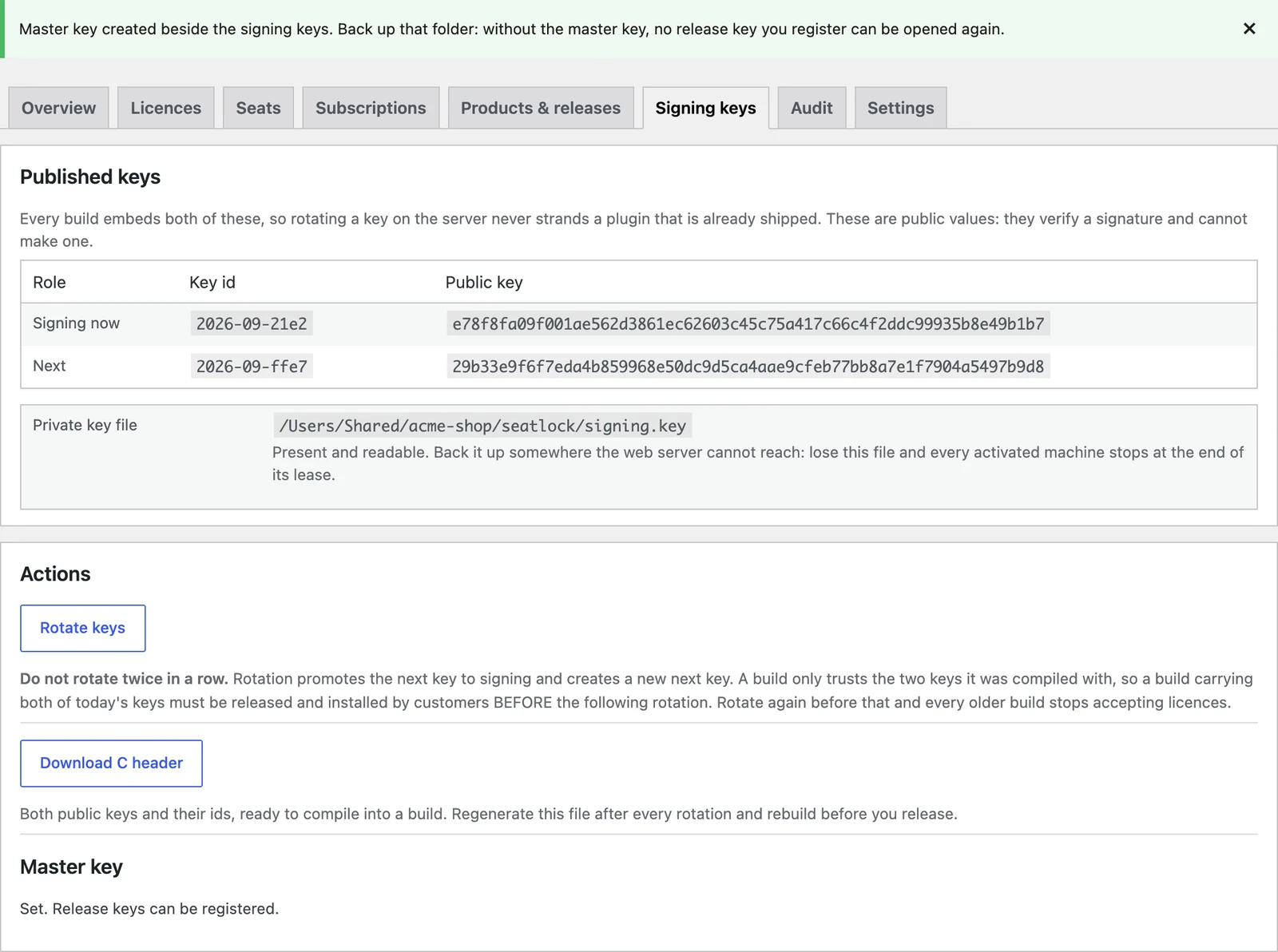
Back up the key folder now. The screen shows where it is. Ask your host how to download a folder, or use their file manager. Keep the copy off the server. If you lose the signing keys, installed copies of your plugin stop accepting new licences. A database backup does not contain them.
Go back to the Overview. Every health row is now green.
4. Add your plugin as a product
Open Seatlock → Products & releases. Under Add a product, type a short product code and the name your customers read. The other fields have sensible defaults. Click Add product.
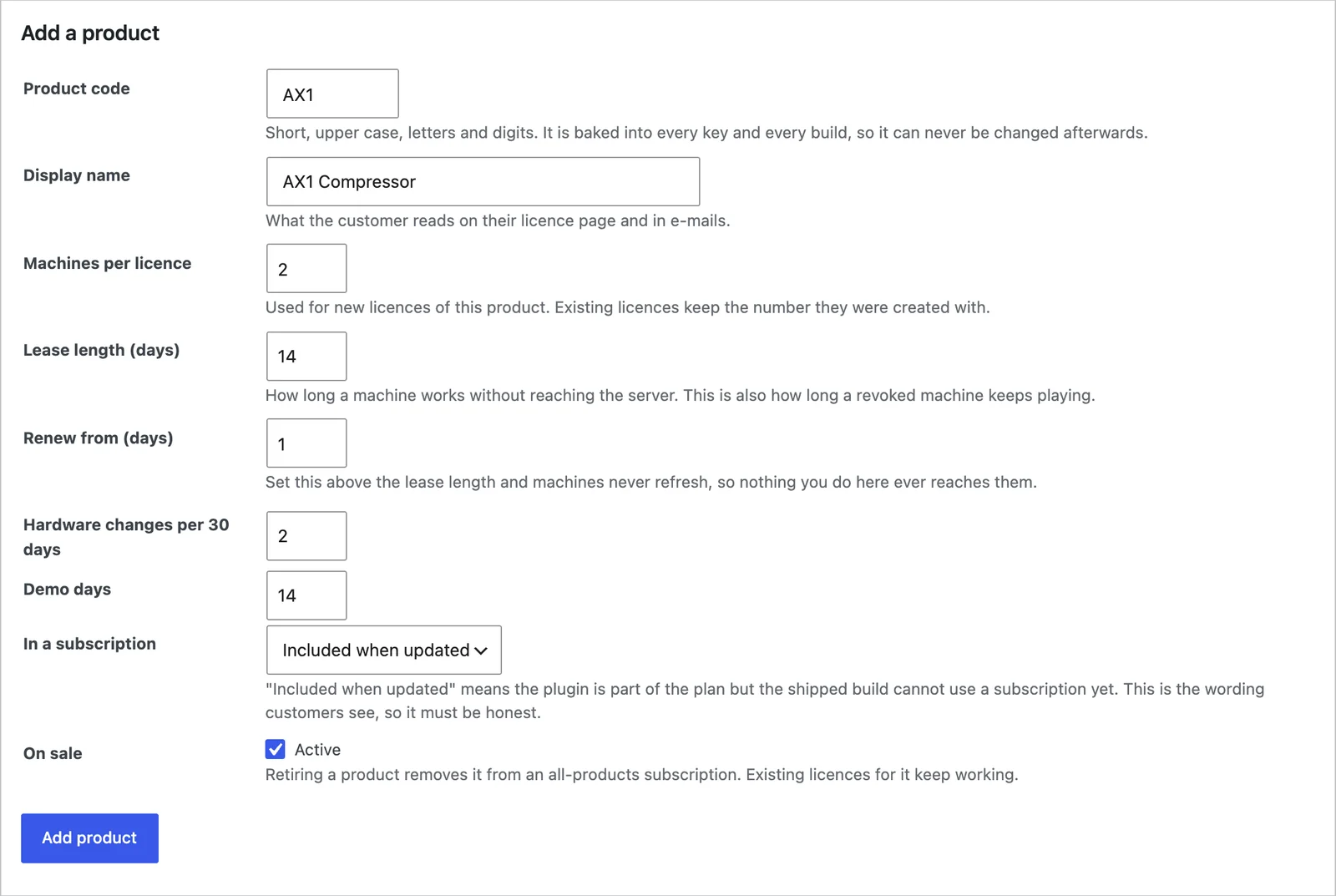
Choose the product code carefully. It goes into every key and every build, so it cannot change later.
5. Connect it to your WooCommerce product
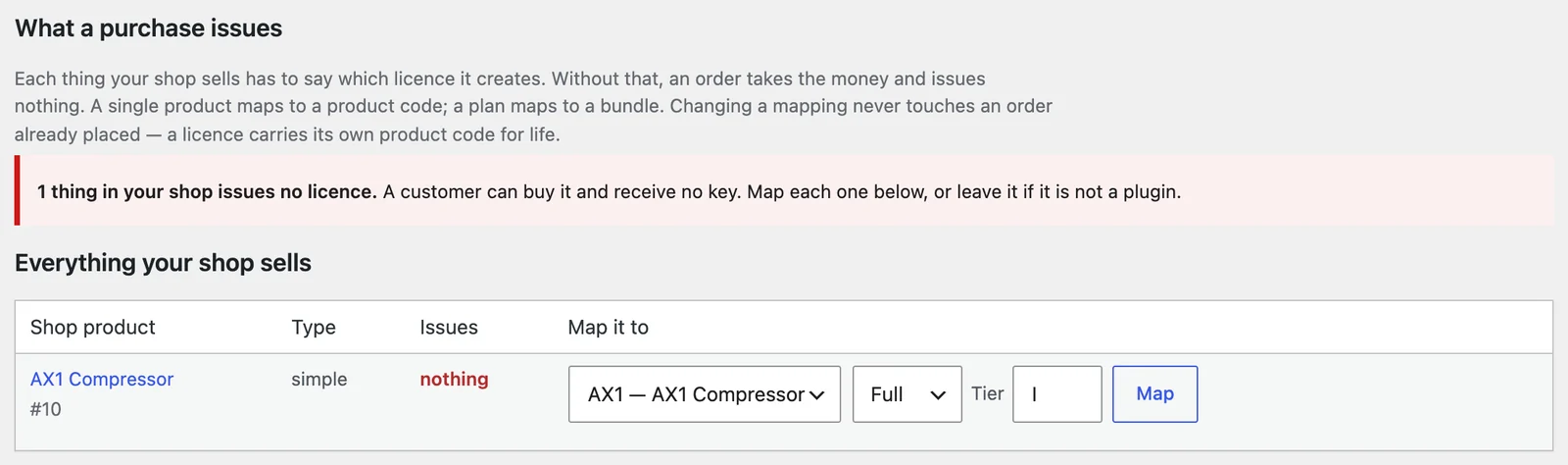
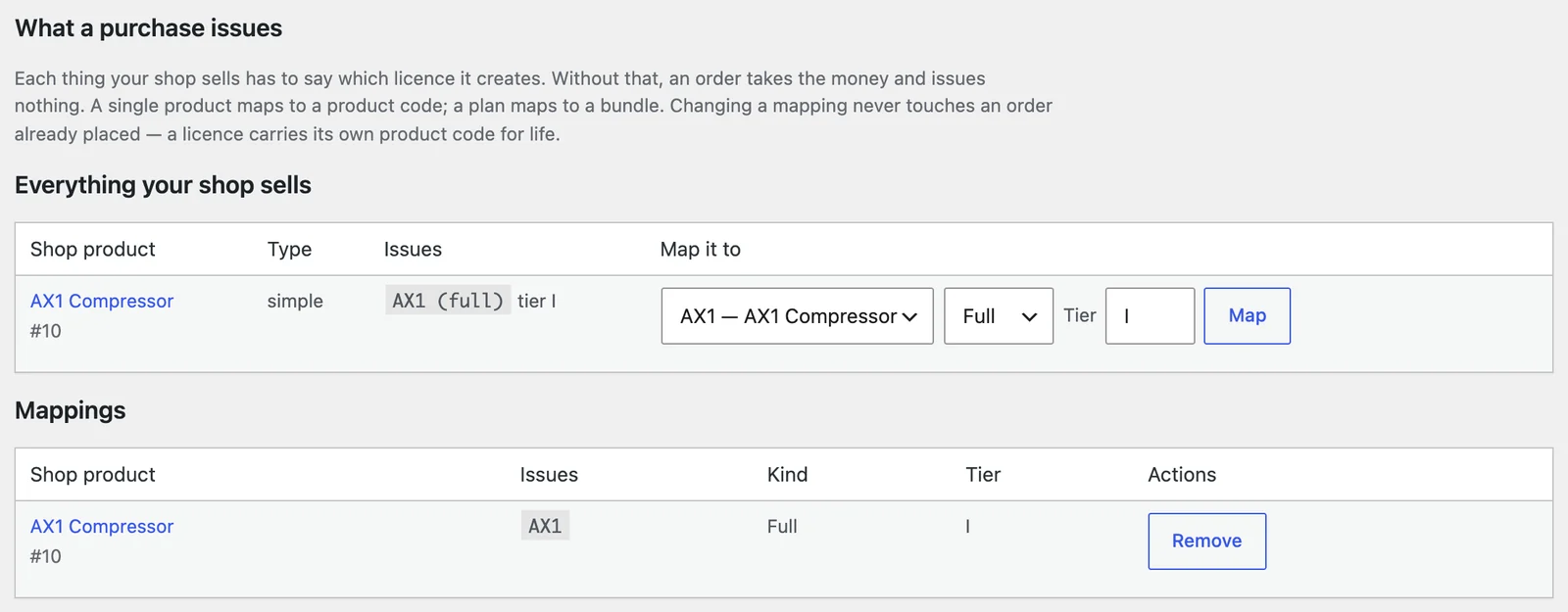
On the same screen, What a purchase issues lists everything your shop sells. A red note means a customer could buy something and receive no key. Pick your product code next to the shop product and click Map.
Part 2: your plugin
You start with the example plugin in your download. It is the smallest plugin that licenses itself, and every line in it is a line you will use in your own product.
6. Create your release key and register it
Open Terminal. Type cd and a space, drag your unzipped Seatlock folder into the Terminal window, and press Return. Then copy these lines one at a time:
xattr -dr com.apple.quarantine tool
T=tool/seatlock-tool/seatlock-tool; K=~/seatlock-secure
mkdir -p $K && chmod 700 $K
[ -f $K/vendor-salt.hex ] || $T salt > $K/vendor-salt.hex
[ -f $K/AX1-1.0.0.key ] || $T release-key > $K/AX1-1.0.0.key
pbcopy < $K/AX1-1.0.0.key
What they do: the first line lets macOS run the tool you downloaded. The second gives the tool and your private folder short names. The next lines make that folder, create your vendor salt (once for your whole company, never changed) and a release key for version 1.0.0, and copy the release key to your clipboard. The salt and key lines never overwrite a file you already have, so running them twice is safe.
In WordPress, open Seatlock → Products & releases → Register a release key. Choose your product, type the release 1.0.0, paste the key and click Store sealed.
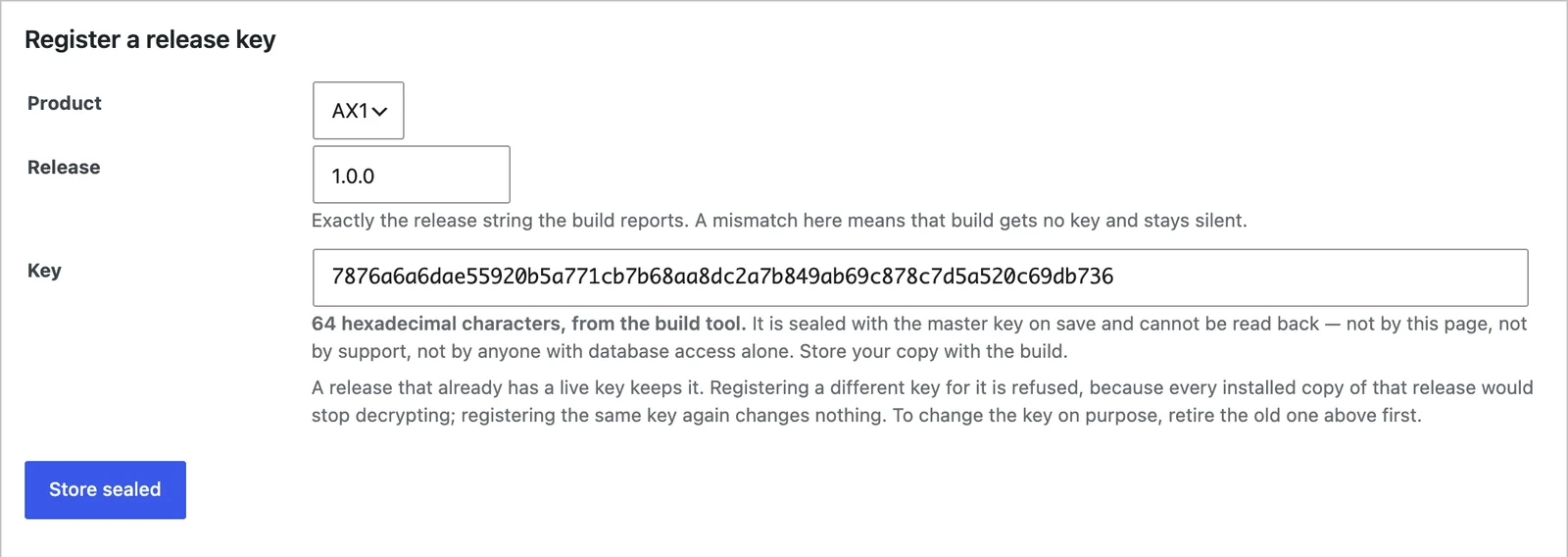

Keep the ~/seatlock-secure folder, and back it up. You need the same salt for every product you ever ship, and each release key to rebuild that release.
7. Put your shop’s details into the example
In the same Terminal window, replace your-shop.com with your shop’s address in both places, then run:
T=tool/seatlock-tool/seatlock-tool; K=~/seatlock-secure
curl -s https://your-shop.com/wp-json/seatlock/v1/pubkey \
    > $K/pubkey.json
$T emit --out sdk/hello-seatlock/Source/SeatlockGenerated.h \
    --vendor "Acme Audio" --vendor-salt @$K/vendor-salt.hex \
    --product AX1 --release 1.0.0 --app-version 1.0.0 \
    --server https://your-shop.com/wp-json/seatlock/v1 \
    --pubkeys $K/pubkey.json
Use your own company name after --vendor and your own product code after --product. The file this writes holds only public values: your shop’s public keys, your salt and your shop’s address. You do not edit any code. The example finds the file by itself.
8. Build the example and open it
Replace /path/to/JUCE with the folder where JUCE is on your Mac:
cmake -S sdk/hello-seatlock -B build -DJUCE_DIR=/path/to/JUCE
cmake --build build --target HelloSeatlock_Standalone
open "build/HelloSeatlock_artefacts/Standalone/Hello Seatlock.app"
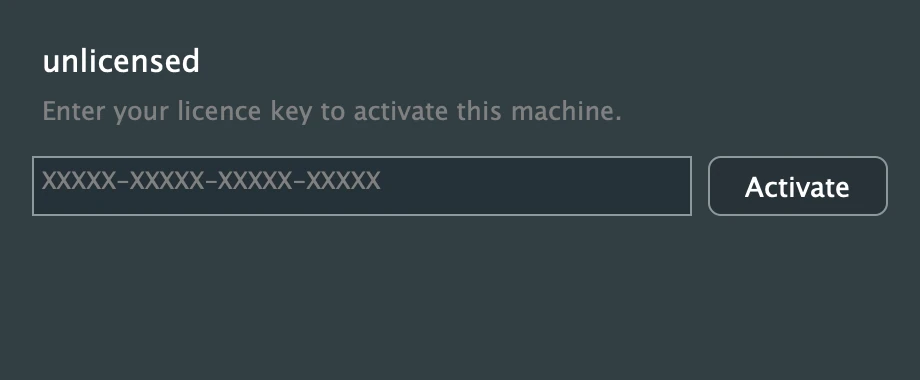
The plugin opens unlicensed. It is silent until it is activated. That silence is the whole protection: no nag screen, no noise.
Part 3: a test purchase
9. Buy your own product
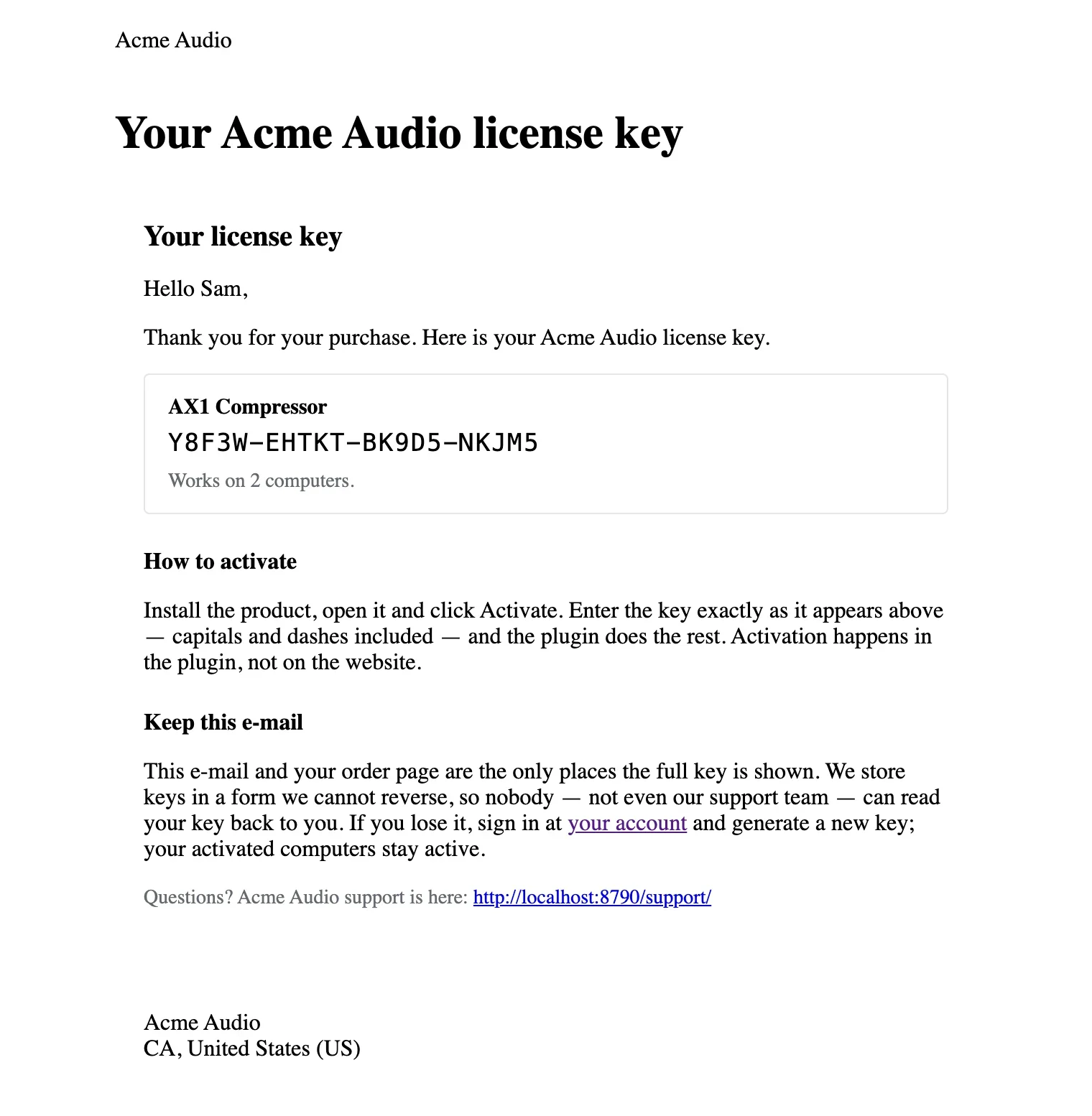
Place an order for your product in your shop, as a customer would. You can also create one in WooCommerce → Orders → Add order and set it to Completed. When the order is complete, the customer receives this e-mail:
10. Activate
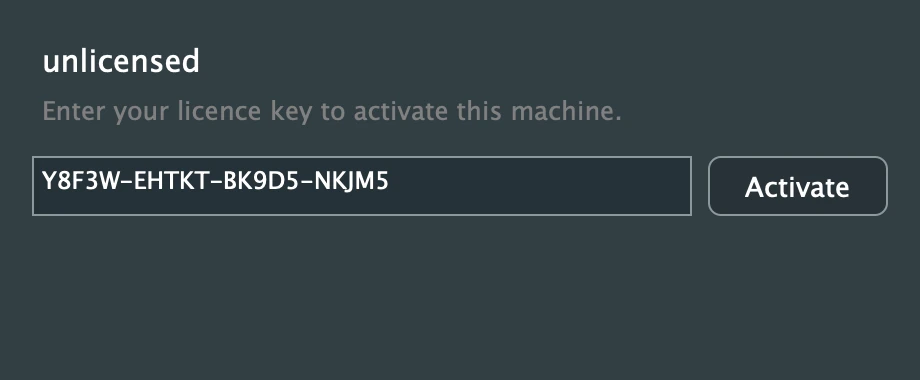
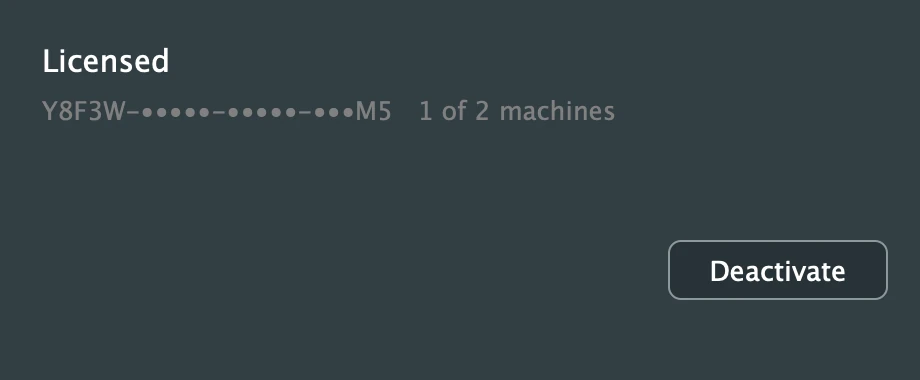
Paste the key into the plugin and click Activate.
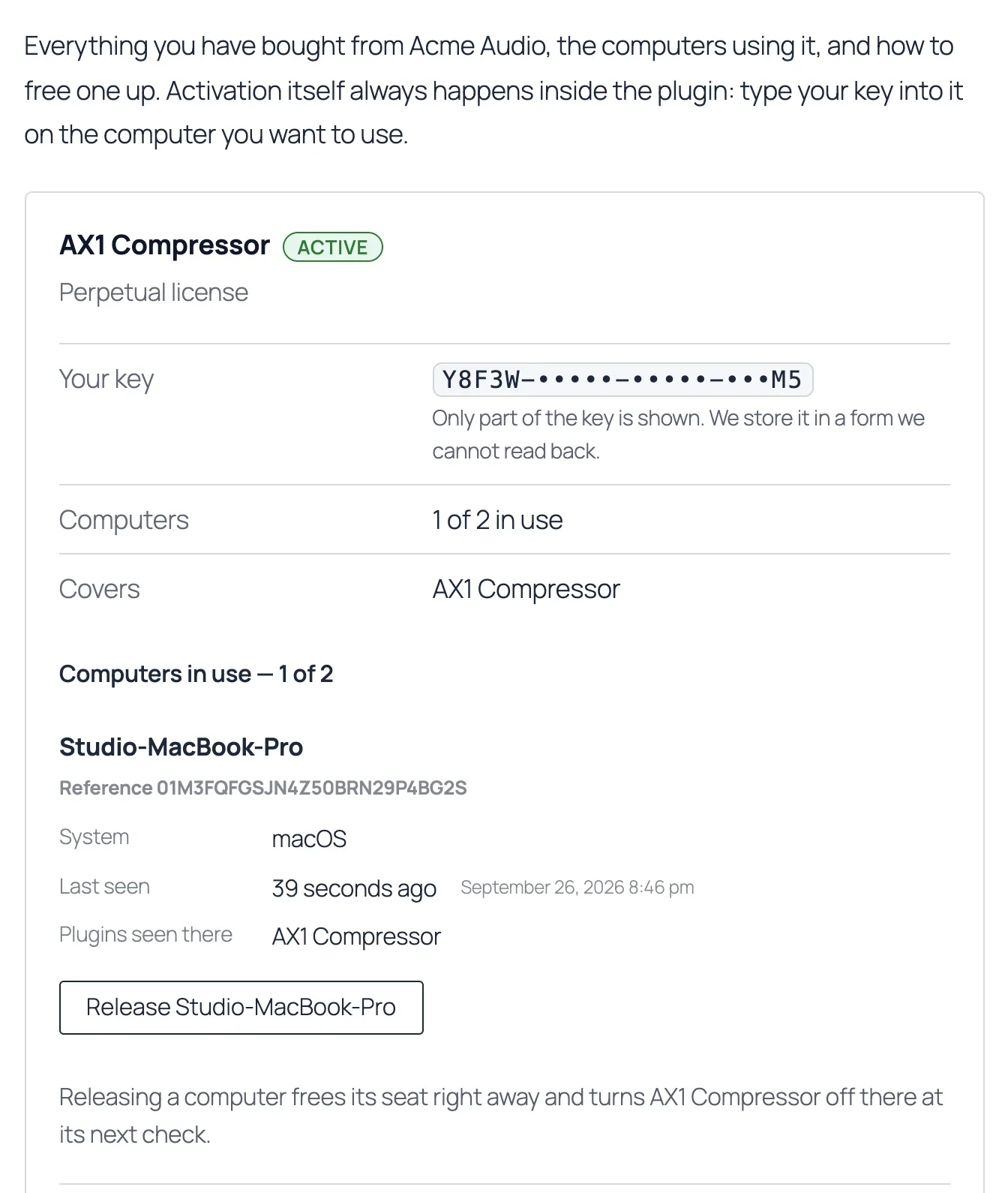
The customer sees the same machine in their account, and can free it there when they change computers:
If you see this, everything works: your shop issued the key, the plugin checked it with your shop, and your shop recorded the machine.
Part 4: before you sell
- Your own product. Copy the licensing parts of the example into your plugin. The example’s README shows the five lines that do the check in your audio code, and the rules that keep them safe.
- Your DSP constants. To encrypt the values your sound depends on, pack them with seatlock-tool before step 7. The tool’s README shows the one command.
- Backups. The key folder on your server, and your
~/seatlock-securefolder on your Mac. Keep both off the server and off that Mac. - A second computer. Activate on it too, then free a machine from your account page. It is the quickest real-world check.
- Each new version. Repeat steps 6 to 8 with the new release number, for example
1.1.0in place of1.0.0. Your salt stays the same.
Stuck anywhere?
Write to us with the step number and what you see. We help until the example plugin activates against your own shop.